Explorer
Explorer helps you understand a database before writing SQL. It is the safest place to start when you are unfamiliar with a schema.
What You Can Inspect
| Area | What to Look For |
|---|---|
| Databases and schemas | Available namespaces and table grouping |
| Tables | Table names, purpose, and row shape |
| Columns | Names, types, and likely meanings |
| Sample rows | Representative values and null patterns |
| Relationships | IDs, foreign-key-like names, and join candidates |
Database Browser
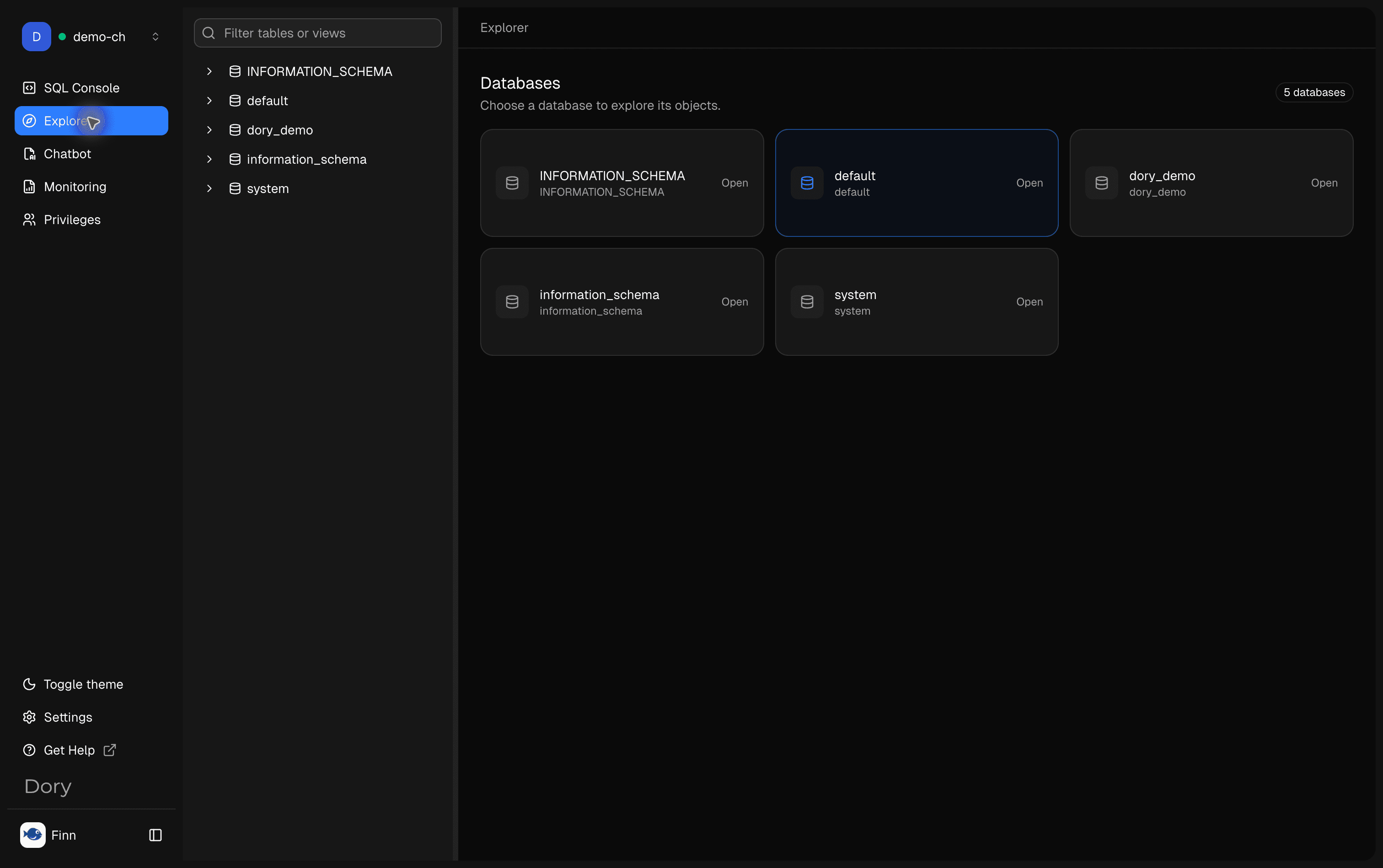
Start from the database list to confirm that the connection exposes the expected namespaces. The left panel lets you filter objects and move between databases without leaving the current connection.
Database Type Differences
Explorer adapts the object groups and table detail tabs to the database driver. The table below reflects what Dory shows for each database type.
| Area | What Explorer Shows |
|---|---|
| Database level | Summary, Tables, Views, and Materialized Views. |
| Sidebar objects | Databases, Tables, Views, and Materialized views. |
| Table detail tabs | Overview, Data Preview, Structure, and Stats. |
| Area | What Explorer Shows |
|---|---|
| Database level | Databases and schemas. |
| Sidebar objects | Schemas, Tables, Views, Materialized views, and Functions. |
| Table detail tabs | Overview, Data, Structure, Stats, and Indexes. |
| Area | What Explorer Shows |
|---|---|
| Database level | Databases. |
| Sidebar objects | Tables and Views. |
| Table detail tabs | Overview, Data, Structure, Stats, and Indexes. |
Database Details
Summary
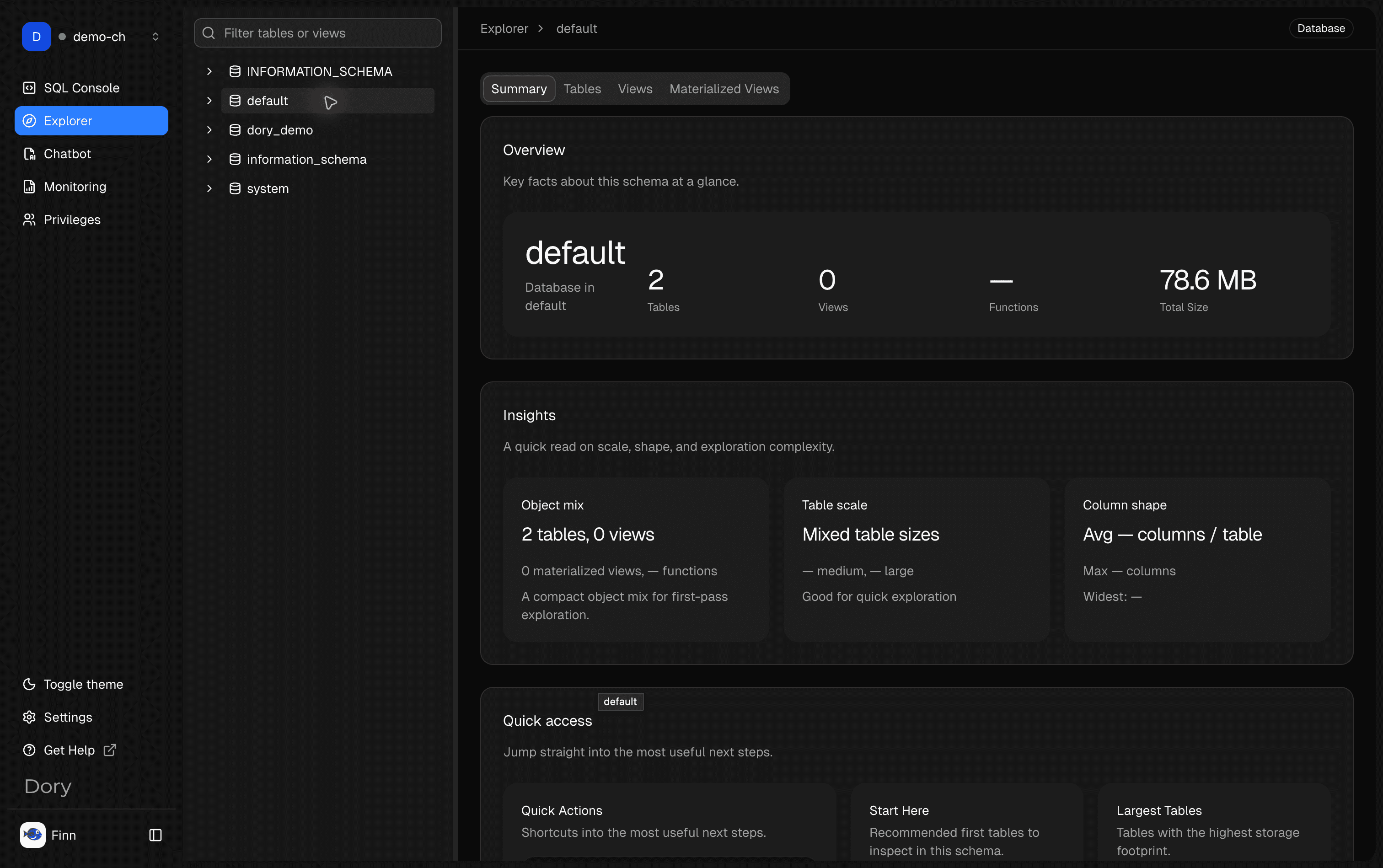
Open a database to review high-level metadata such as table count, view count, total size, object mix, largest tables, and recently updated objects.
Tables
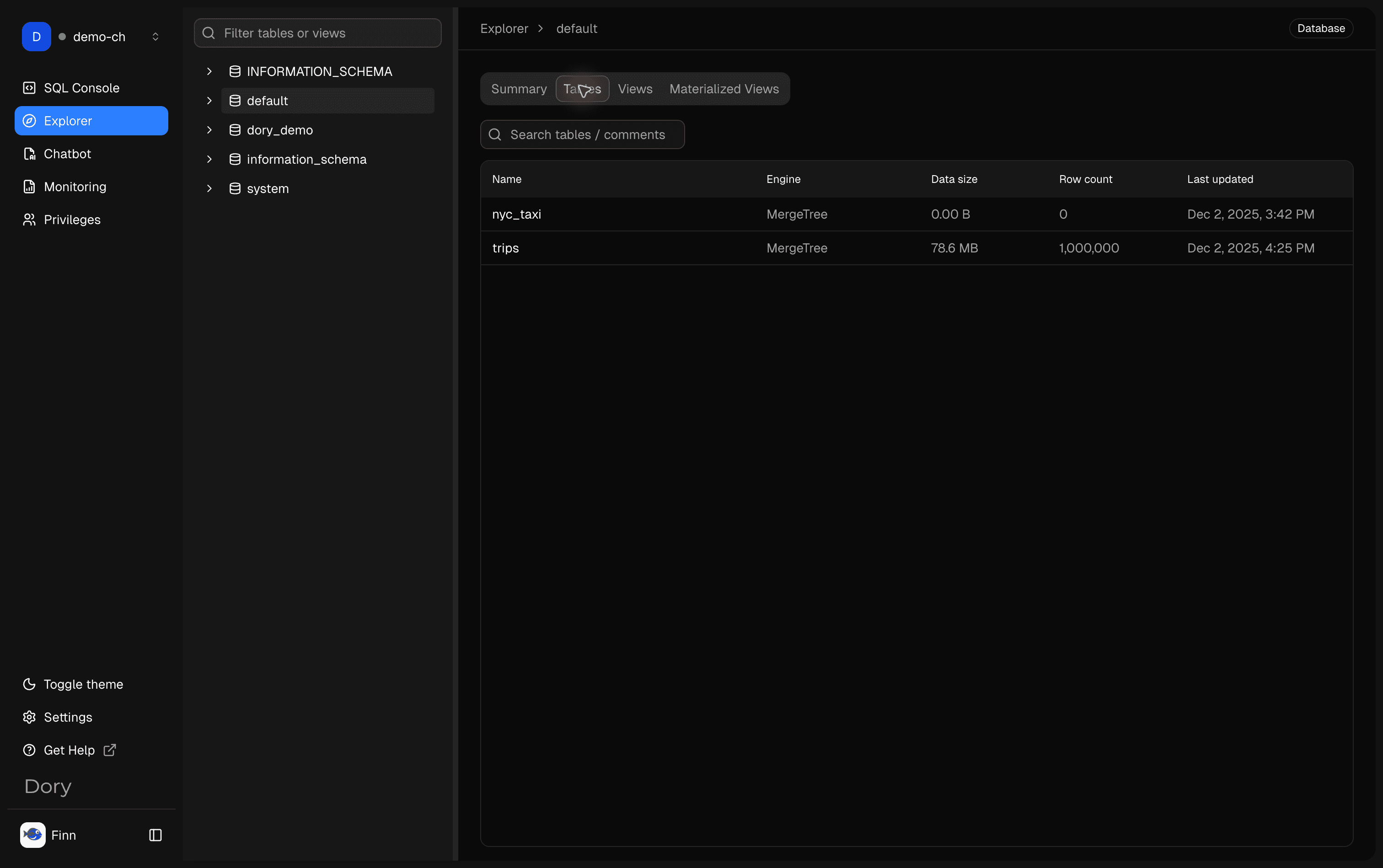
Use the Tables tab to compare table names, engines, row counts, data size, and update time before choosing which table to inspect or query.
Views
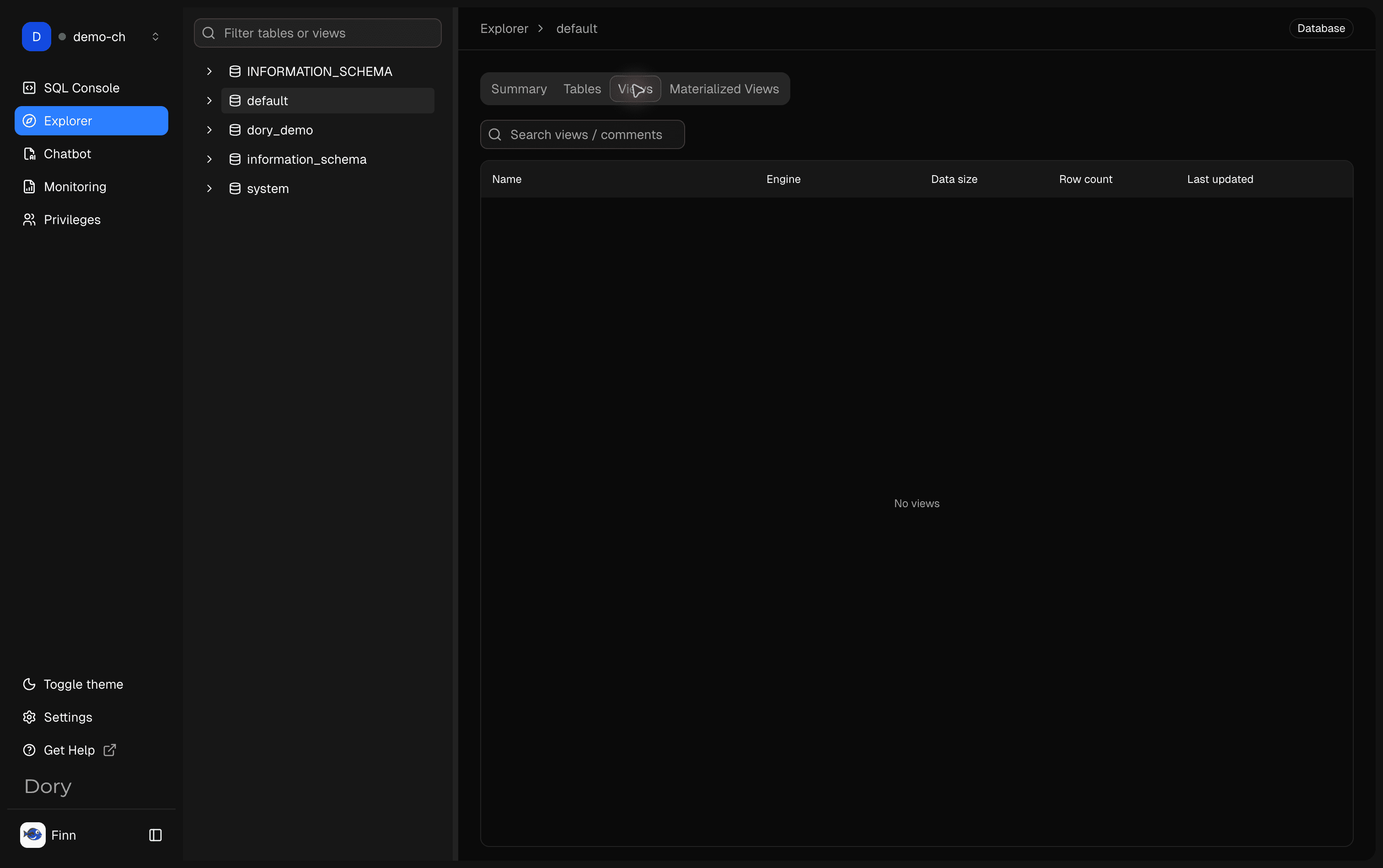
Use the Views tab to find saved virtual tables exposed by the current database. Search by name or comment, then check engine, row-count metadata, size, and last updated time when the database provides it.
Materialized Views
Use the Materialized Views tab to inspect persisted view-like objects separately from regular tables and views. This helps you distinguish reusable query definitions from precomputed or storage-backed objects before querying.
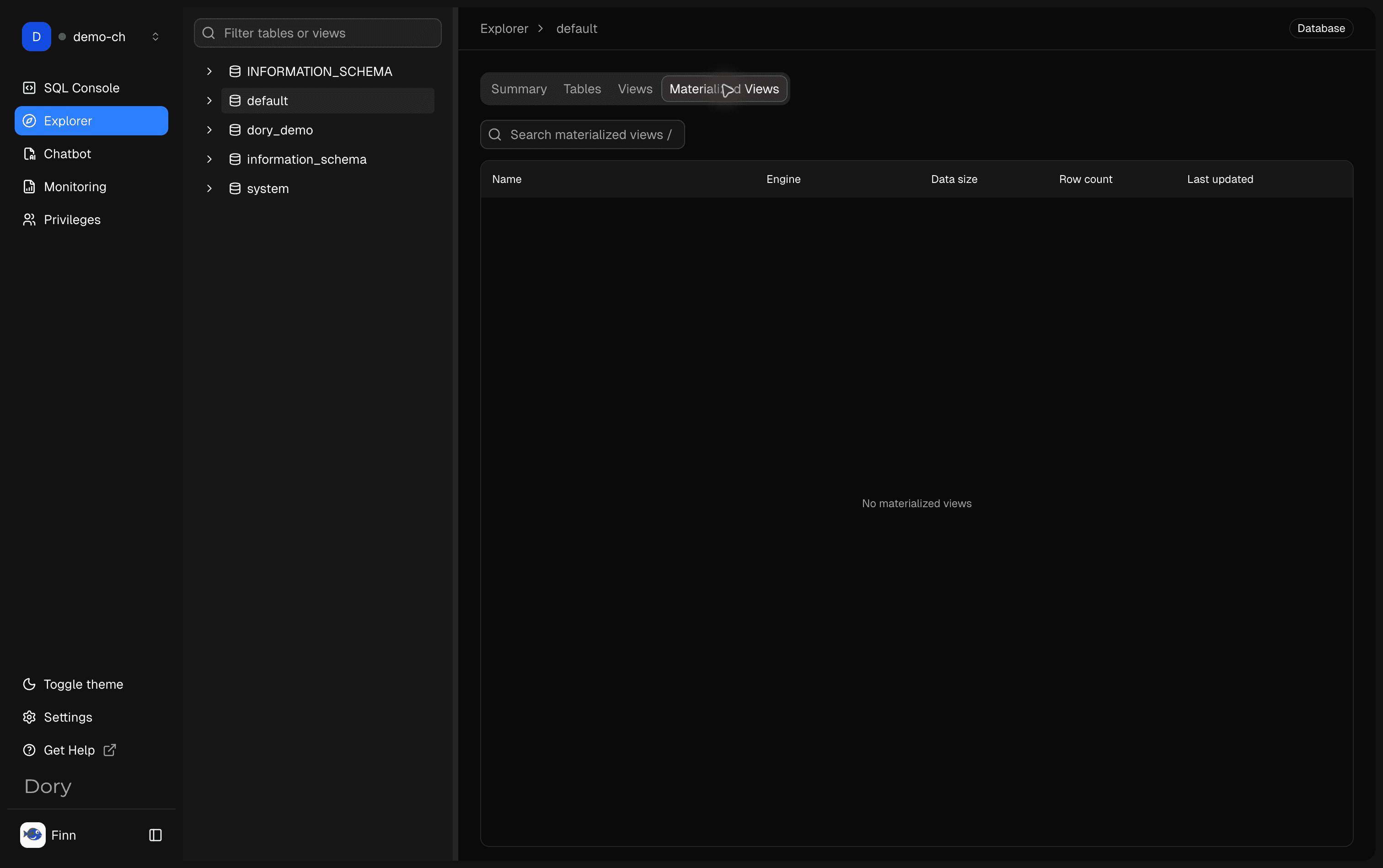
Table Details
Overview
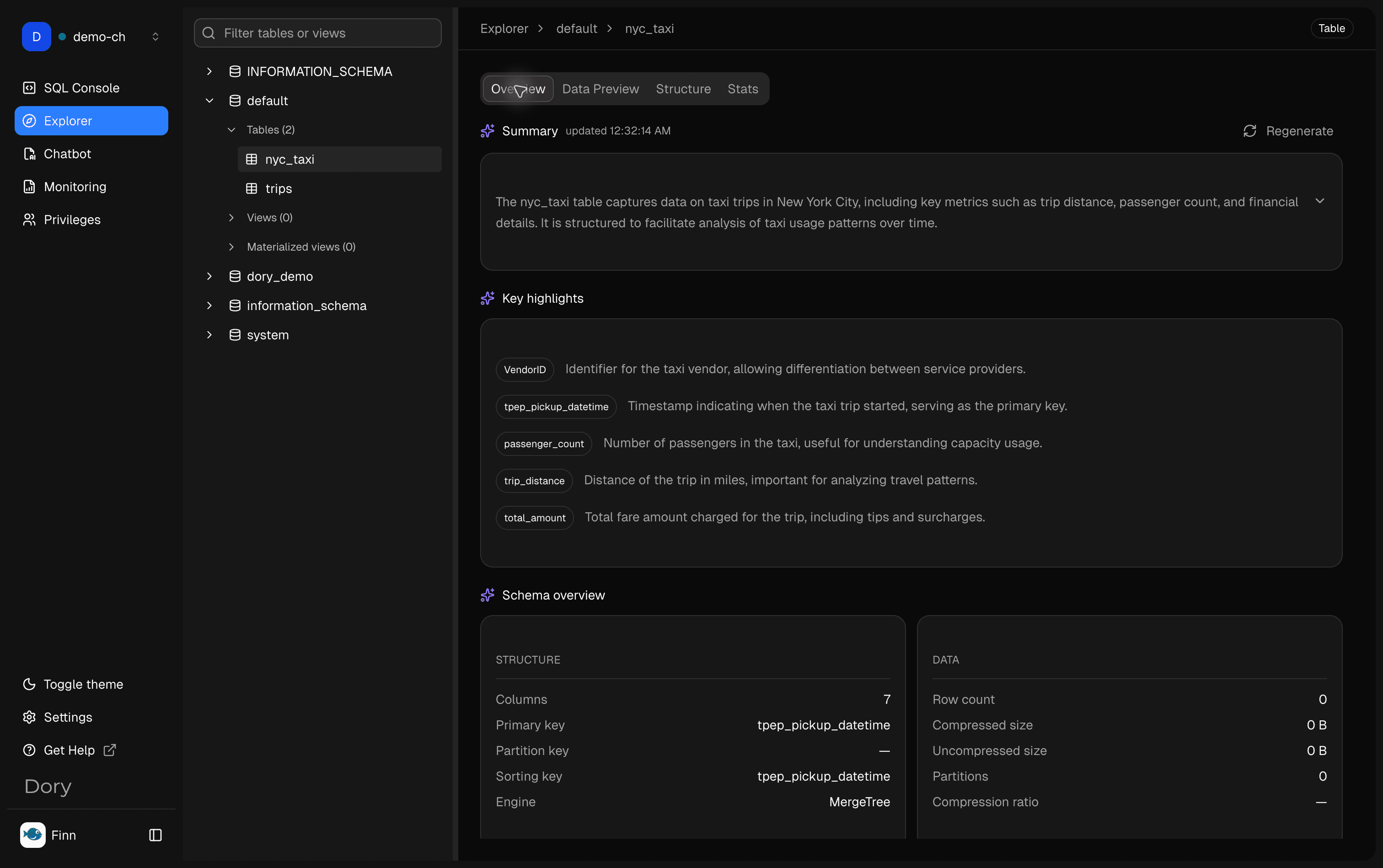
Open a table and start from Overview for an AI-generated summary, key highlights, schema and storage facts, semantic field grouping, and ready-to-adapt query snippets.
Data Preview
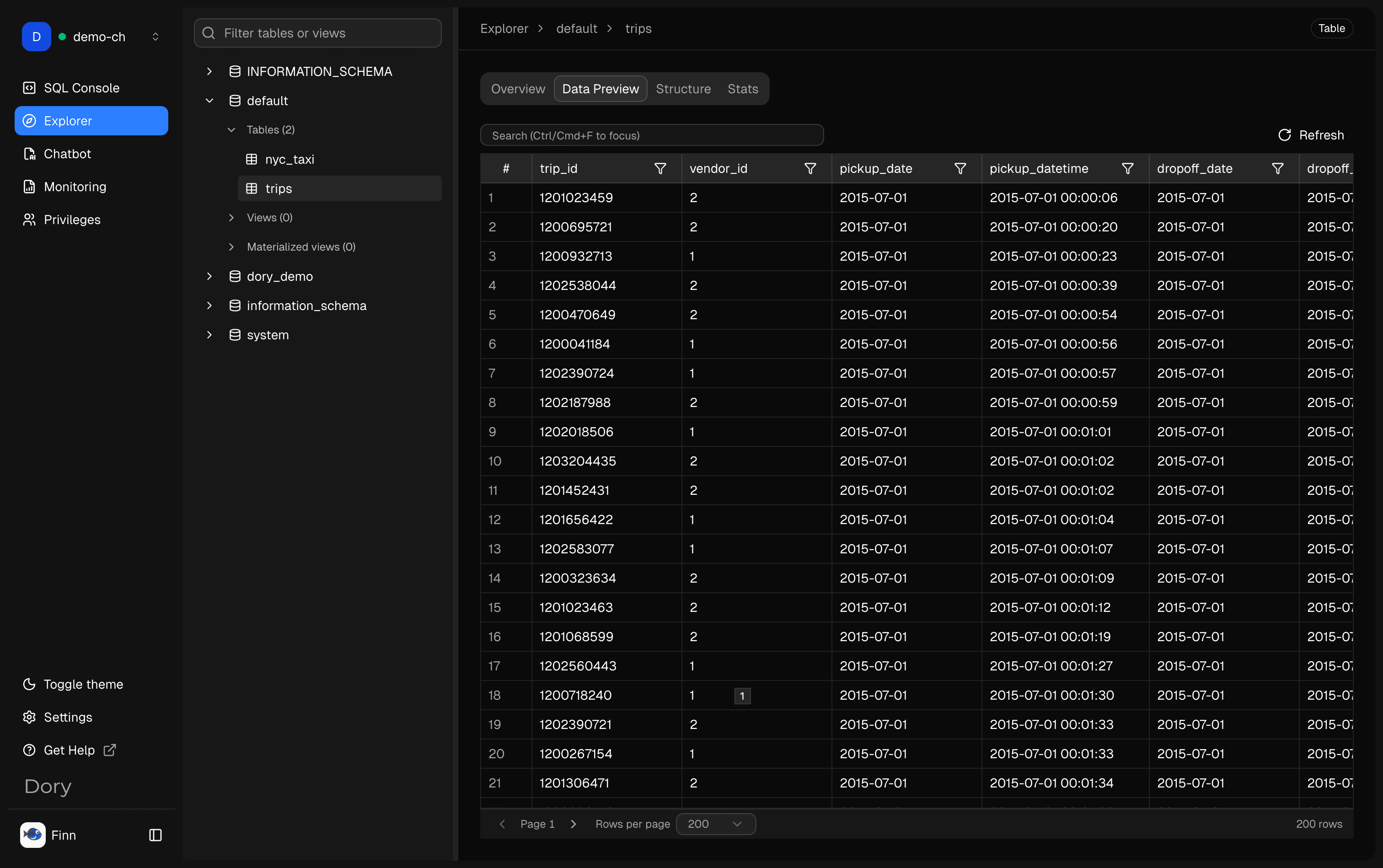
Use Data Preview to inspect sample rows before writing filters, joins, or aggregations. The grid supports scanning real values, comparing columns, searching, paging, and refreshing the preview.
Structure
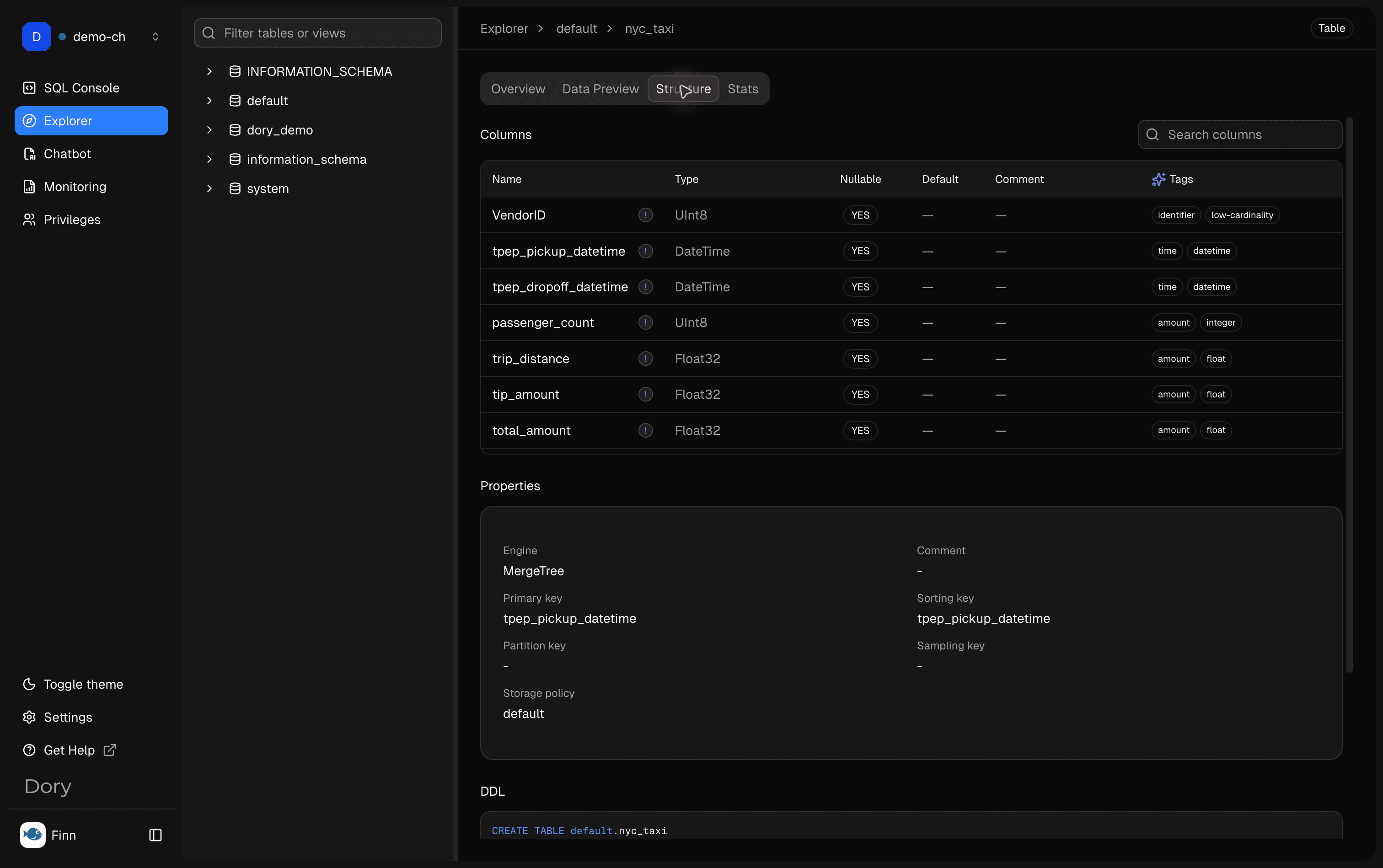
Open a table and use Structure to inspect columns, types, nullability, tags, keys, table properties, and DDL. This is the best place to verify exact column names before writing SQL or asking AI to generate a query.
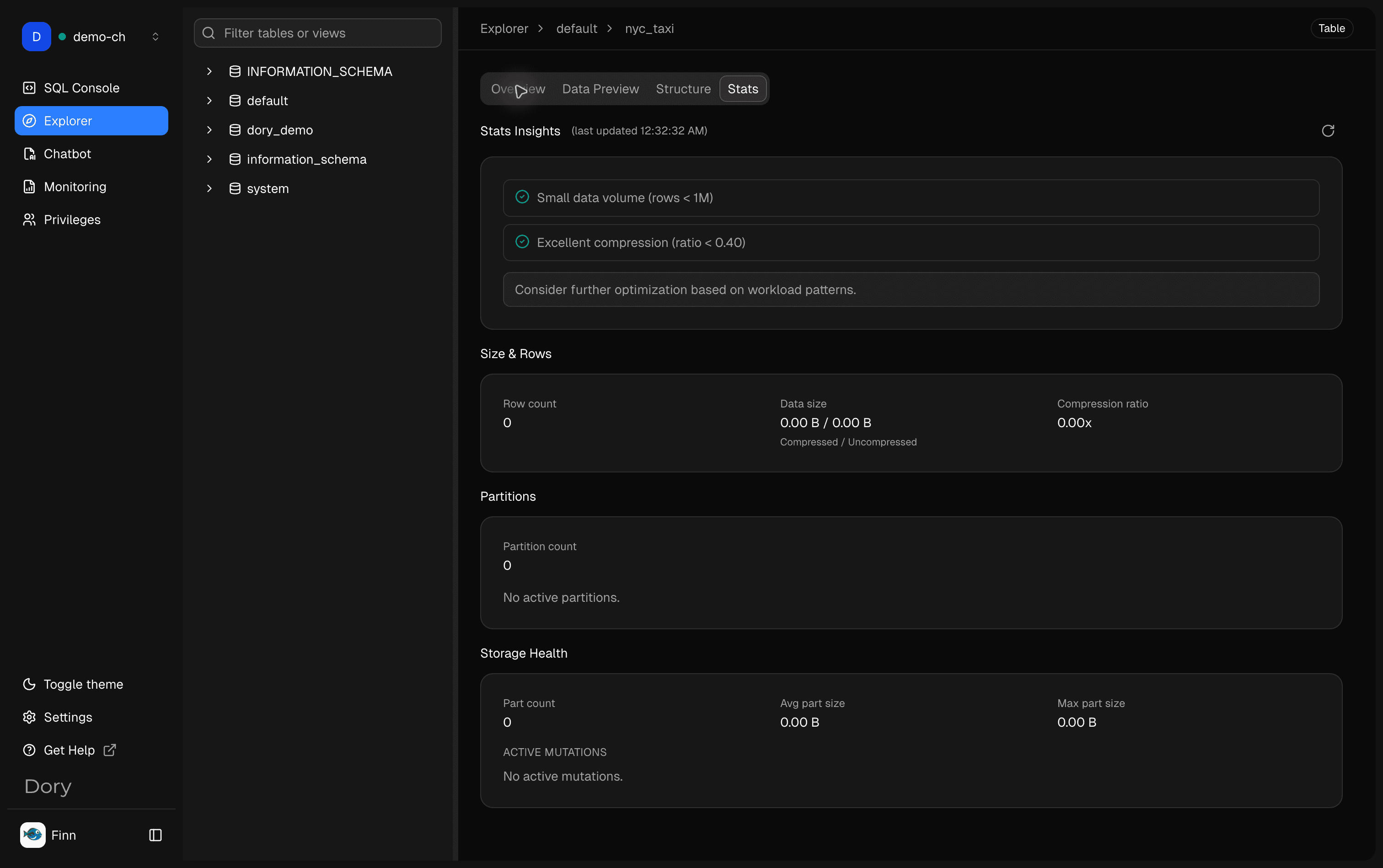
Stats
Use Stats to review size, row count, compression, partitions, parts, and active mutations when the database exposes those metrics. This is useful before performance work or when deciding whether a query should be sampled first.
Why It Matters
- You can avoid guessing table and column names.
- AI Chat can work with better schema context.
- SQL Console queries are easier to validate.
- You can identify safe preview queries before running larger analysis.
Recommended Flow
- Select a connection.
- Browse schemas and tables.
- Open a table and inspect columns.
- Preview a small sample when available.
- Move to SQL Console or AI Chat with the table context in mind.
Working with AI
When asking AI to generate SQL, mention the exact table and columns you confirmed in Explorer. This reduces hallucinated column names and makes the first draft easier to review.
How is this guide?